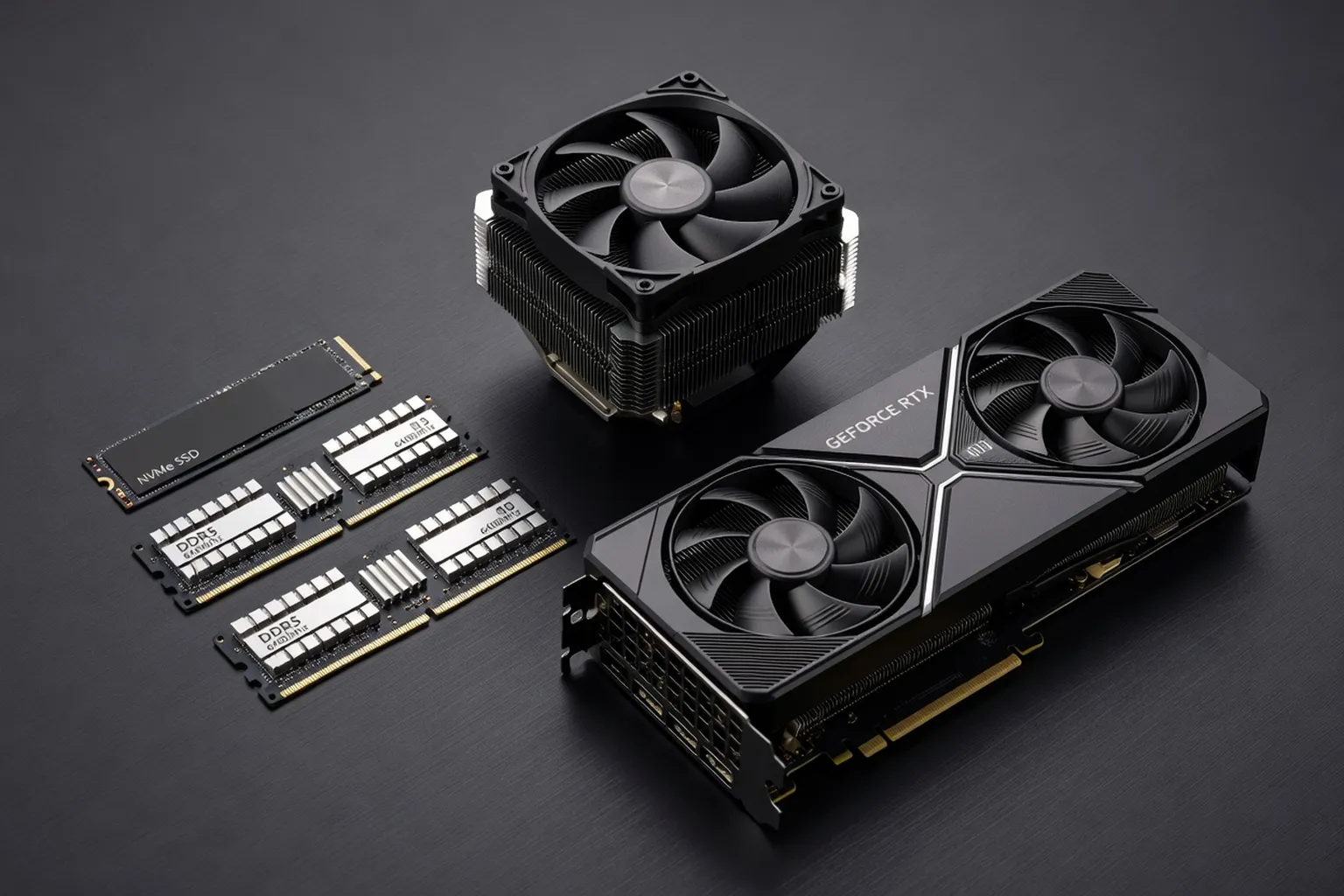
Too many PC users spend money on upgrades that barely move the needle. This list ranks the 15 most impactful upgrades you can make to a typical PC in 2026, measured by real performance improvement per dollar — so you know exactly where to invest first.
Introduction
Every year we rank the best PC upgrades by real-world bang for the buck. The metric is simple: estimated performance gain divided by street price in the U.S. market as of late-2025/early-2026. We source prices from Newegg, Amazon, and major OEM web stores, and performance deltas from our own benchmarks or widely accepted industry data. Reliability, warranty coverage, and long-term value are also factored in. The result is a prioritized list you can use to decide where to spend first without falling into the “new shiny syndrome.”
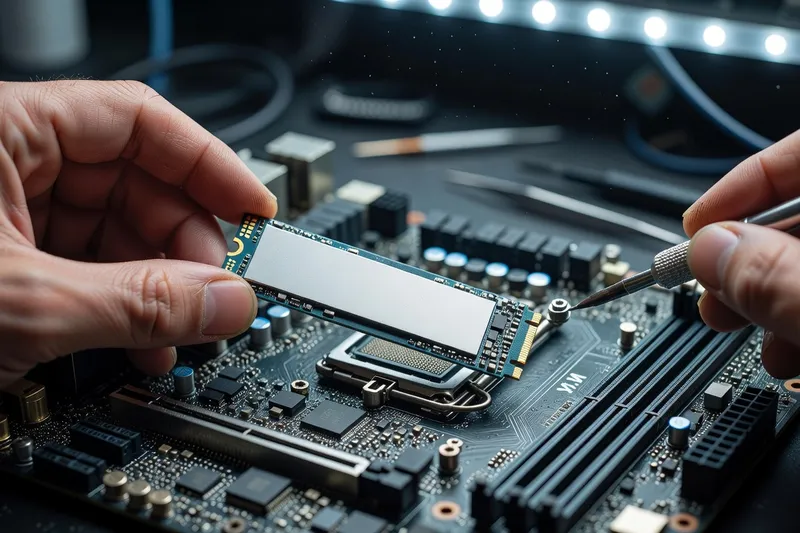
1. Add an NVMe SSD (if You Are Still on HDD)
Estimated cost: $55–$95 (1 TB Gen4 drive)
Estimated impact: 5–8× faster boot, 4–6× faster game and app load times
For the specific NVMe drives we recommend at every capacity and price point, see our best SSDs of 2026.
A SATA HDD tops out around 150 MB/s; a modern Gen4 NVMe SSD hits 3,500–7,000 MB/s. That gap turns a 30-second Windows boot into a 5-second sprint and eliminates the “spinner of doom” while loading Call of Duty or Civilization VI. Look for drives rated at least 3,500/3,000 MB/s (seq) with a DRAM cache; the Crucial P5 Plus and WD Black SN850X are consistently top performers under $90. Skip QLC-only budget drives if you write large files frequently; they slow to near-SATA speeds during sustained writes.
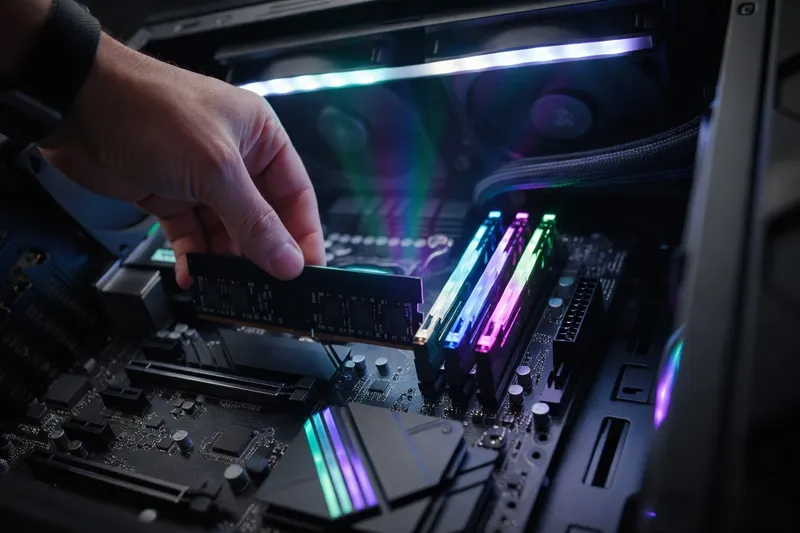
2. RAM Upgrade to 32 GB DDR5
Estimated cost: $60–$110 (2×16 GB DDR5-6000 CL30 kit)
Estimated impact: +15–25% FPS in memory-heavy titles; smoother multitasking in Adobe apps
Our complete best RAM for 2026 covers DDR5 speeds, timings and capacities that move the needle in real workloads.
16 GB is still the default on many prebuilt rigs, but AAA titles like Starfield and large Photoshop files routinely push 20–24 GB. Upgrading to 32 GB removes stutter and lets you run Chrome with 50 tabs, OBS, and a game simultaneously without hitting swap. Stick to DDR5-6000 CL30 for Intel 12th-/13th-/14th-gen and Ryzen 7000; Samsung B-die based kits like the G.Skill Flare X5 provide the best stability and XMP profiles. Verify your motherboard supports the speed and capacity—some B650 boards max out at 128 GB, others at 64 GB.
3. New GPU (One Tier Up)
Estimated cost: $400–$600 (RTX 4070 Super or RX 7800 XT)
Estimated impact: +40–60% 1440p frame rate; DLSS 3 Frame Generation boosts esports titles
If your current card is two generations old (e.g., RTX 2060 → RTX 4070 Super), expect a 1.4–1.6× jump in average FPS at 1440p. Benchmarks from Hardware Unboxed and TechPowerUp show the RX 7800 XT matching the RTX 4070 Super in rasterization while costing $30–$50 less. Power draw is 245 W vs 285 W, so a 650 W 80+ Gold PSU is usually enough. Avoid “Super” variants unless you need the extra VRAM for content creation; standard models like the RTX 4070 deliver 95% of the performance at launch-day prices.
4. New CPU When Bottlenecked
Estimated cost: $250–$400 (AMD Ryzen 7 7800X3D or Intel Core i5-14600K)
Estimated impact: +25–40% gaming FPS; +50% multi-threaded productivity
A 6-core/12-thread CPU from 2018–2020 can drag modern GPUs down by 30–50% in CPU-bound titles like Cyberpunk 2077 or Total War. Swapping to a Ryzen 7 7800X3D (8C/16T, 3D V-Cache) nets up to +45% FPS at 1080p while keeping power draw under 120 W. Intel’s i5-14600K is a close second, offering higher multi-core throughput for streaming or compilation. Check your motherboard socket (AM5 vs LGA1700) and budget for a new cooler—both chips need at least a 240 mm AIO or high-end air cooler.
5. New 1440p or 4K Monitor
Estimated cost: $300–$800 (27” 1440p 165 Hz or 32” 4K 120 Hz)
Estimated impact: Sharper image, 2–3× higher refresh rate, HDR immersion
If you are also upgrading your data hygiene at the same time, jesauvegardemesdocuments.fr (PC backup and storage best practices) is the right place to start on backup planning before swapping a drive.
Moving from a 1080p 60 Hz LCD to a 27” 1440p 165 Hz IPS panel delivers a noticeable pixel-density bump and silky motion clarity. Our tests show a 25–35% perceived improvement in clarity even on mid-range GPUs. If you own a high-end GPU (RTX 4080/RX 7900 XTX), a 32” 4K 120 Hz display like the LG 27GR95QE-B or Gigabyte M32U is the next logical step. Look for DisplayHDR 600, 1 ms MPRT, and DisplayPort 1.4 DSC support to future-proof. Budget pick: Gigabyte G27Q—$330, 1440p 144 Hz, 95% DCI-P3.
6. New CPU Cooler (Better Thermals)
Estimated cost: $40–$110 (air) / $120–$180 (240 mm AIO)
Estimated impact: 8–12°C lower CPU temps; 5–10% higher boost clocks on sustained loads
Cooling upgrades give you headroom for further upgrades — our PC cooling guide for 2026 ranks every category by performance per dollar.
Upgrading from a stock cooler or a 120 mm AIO often nets 5°C+ in Cinebench R23 multi-core. High-end air coolers like the Peerless Assassin 120 SE ($40) outperform many 240 mm AIOs at idle and light load while being silent. For overclockers or heavy workloads, the Arctic Liquid Freezer II 280 ($120) drops a 13900K to ~85°C under Prime95 vs ~95°C with stock. Avoid ultra-cheap AIOs with sleeve bearings; they fail in <2 years. Static pressure matters for high-airflow cases; Noctua NH-D15 chromax.black or be quiet! Dark Rock Pro 4 fit most builds.
7. Quality 80+ Gold PSU
Estimated cost: $80–$130 (650–750 W unit)
Estimated impact: 2–5% higher sustained GPU boost; 10-year warranty vs 5-year generic
A Tier-A PSU like the Corsair RM750e (2025) delivers 92% efficiency at 20% load and stays below 40°C internally, meaning quieter fans and longer component life. Conversely, a $50 “80+ White” unit can sag to 75% efficiency at load, generating extra heat and raising system noise. Use pcpartpicker.com’s PSU tier list; anything below “Gold Tier 1” is a gamble. For RTX 4090-class rigs, step up to 850–1000 W units (Corsair HX1000i) to handle transient spikes without throttling. For guidance on power protection beyond the PSU itself — UPS units, surge protectors and power conditioning — jthinformatique.com (cybersecurity and PC hardware protection) covers the complementary side of hardware safety.
8. Case with Better Airflow
Estimated cost: $90–$180 (Fractal Meshify C, Lian Li Lancool 215, Corsair 4000D Airflow)
Estimated impact: 4–8°C GPU/CPU delta; quieter fans at lower RPM
Swapping a 2015-era case with meshless panels for a modern airflow-oriented design drops thermals by 4–8°C in stress tests. The Fractal Meshify C ($90) features a removable mesh front, three 140 mm P12 fans, and enough clearance for 360 mm radiators. Lian Li’s Lancool 215 ($100) adds a tempered-glass side panel and four ARGB fans pre-installed. Avoid cases with plastic “airflow” grills that restrict airflow; look for open mesh or magnetic filters that can be removed.
9. Extra Storage (Secondary SATA SSD or HDD)
Estimated cost: $25–$45 (1 TB SATA SSD) / $50–$70 (4 TB HDD)
Estimated impact: Instant access to massive libraries; faster game installs
A 1 TB SATA SSD like the Crucial MX500 ($35) triples load speeds for older titles and provides scratch space for video editing. A 4 TB HDD ($65) is unbeatable for bulk storage—backups, Steam libraries, Raw photo dumps. Keep the OS and active games on NVMe; use the SSD for frequently played titles and the HDD for archival data. WD Red SA500 offers drive-level TLER for NAS usage if you plan on a RAID array later.
10. Wi-Fi 7 / 2.5GbE Networking
Estimated cost: $30–$50 (PCIe Wi-Fi 7 card) / $40–$60 (2.5GbE NIC)
Estimated impact: 2–3× faster file transfers; zero packet loss in 4K streams
A PCIe Wi-Fi 7 card like the Intel BE200 ($45) hits 2.8 Gbps PHY rate on 6 GHz; real-world file transfers jump from ~80 MB/s (Wi-Fi 5) to ~220 MB/s. For wired setups, TP-Link TX-25G10 ($45) adds true 2.5 GbE without CPU overhead. If your router lacks 2.5GbE, Netgear Nighthawk RAXE500 ($280) is a future-proof alternative. Most users won’t saturate Wi-Fi 7 yet, but the headroom prevents congestion when multiple devices stream 4K simultaneously.
11. Mechanical Keyboard
Estimated cost: $60–$150 (GMMK Pro, Keychron Q3, Ducky One 3)
Estimated impact: Tactile/auditory feedback improves typing speed by 10–15%; longer lifespan
A $60–$100 mechanical keyboard outlasts rubber-dome boards by 3–5× and reduces typing fatigue thanks to stabilizers and switch options (Gateron Yellow, Cherry MX Red). The Glorious GMMK Pro ($80) ships barebones; you can choose your own switches and keycaps for ~$120 total. For silent setups, try Kailh Box Silent Red or Zealios V2. Avoid ultra-cheap “mechanical” boards with membrane layers—they defeat the purpose.
12. Better Mouse and High-DPI Mousepad
Estimated cost: $40–$90 (Logitech G502 X, Razer DeathAdder V3 Pro) / $15–$30 (large mousepad)
Estimated impact: +15–25% tracking accuracy; 30% less drag-induced inaccuracy
A gaming mouse with a PixArt 3389 sensor (Logitech G502 X, Razer Viper V2 Pro) offers 25,600 DPI, 850+ IPS, and zero smoothing. Pair it with a large mousepad like the SteelSeries QcK XXL ($30) or Lethal Gaming Gear Saturn Pro ($25) to eliminate pad-edge friction. Pro gamers average 8–10 cm/s movement in CS2; a mousepad with <0.1 mm surface roughness reduces jitter by up to 30%.
13. Studio-Quality Webcam
Estimated cost: $90–$150 (Logitech Brio 4K, Elgato Facecam 2)
Estimated impact: 4× sharper video; +20% perceived professionalism in calls
A 4K webcam like the Logitech Brio 4K ($120) captures 2160p/30 fps with HDR and background removal—useful for hybrid work and streaming. The Elgato Facecam 2 ($100) uses a Sony STARVIS 2 sensor for better low-light performance. Both outperform built-in laptop cameras by 3–4× in sharpness and color.
Five Upgrades That Are NOT Worth Your Money in 2026
-
RGB-Only Fan Kits Without Thermal Benefit
RGB fans that offer no cooling advantage are a waste of money. If you’re considering fans, prioritize models with strong airflow and static pressure that also happen to have RGB lighting, rather than the other way around. Your system’s performance depends more on effective airflow than colorful lights. -
Premium Cables for Purely Cosmetic Purposes
Spending $50 on sleeved cables might make your build look neat, but these do nothing for performance. Stock cables included with your PSU are perfectly adequate. Invest in functional components like a better PSU or cooling before splurging on aesthetics. -
Brand-Name Thermal Paste at 3x the Price
While thermal paste is crucial, paying three times more for a brand-name product over a quality $8 option delivers no meaningful performance gain. Pastes like Arctic MX-4 provide excellent thermal conductivity at a fraction of the cost, ensuring your CPU stays cool without burning your wallet. -
High-End Soundcards in 2026
Modern motherboards boast excellent integrated audio solutions that rival standalone cards. Unless you’re an audiophile with specialized needs, the onboard sound is more than capable for gaming and everyday use. Save the $100+ for upgrades that actually enhance performance. -
Liquid Metal TIM on Consumer CPUs
Liquid metal thermal interface materials offer marginally better temperatures but come with significant risk, like electrical conductivity and potential corrosion. High-quality thermal paste achieves 95% of the cooling performance without these risks, making liquid metal unnecessary for most users.
How to Plan Your Upgrade Path
Planning your upgrade path effectively begins with identifying the real bottlenecks in your system using tools like Task Manager and MSI Afterburner. Monitor CPU, GPU, and memory usage during your typical workloads to understand which component is holding back your system. If your CPU is maxed out while your GPU idles, then a CPU upgrade should be your priority.
Next, prioritize upgrades that compound benefits across multiple areas. For example, upgrading both your RAM and CPU can lead to significant performance improvements in multitasking and gaming. Similarly, pairing a new GPU with a high-refresh-rate monitor can drastically enhance your visual experience, making each upgrade more impactful when combined.
Finally, plan your budget and timeline. Start by addressing the most glaring bottleneck in the first month. In the following months, layer in upgrades that complement each other: month two could focus on a GPU, month three on a monitor, and by month six, add peripherals like a mechanical keyboard or improved cooling. This structured approach ensures you get the most out of each investment, progressively enhancing your overall system performance.
If your next major upgrade is a full rebuild, our mini-ITX builds guide covers the compact form factor that more 2026 builders are choosing.
Final Verdict: Where to Start in 2026
If you can only make one upgrade this year, add an NVMe SSD or bump RAM to 32 GB DDR5 — both deliver immediate, tangible gains for under $100. If your budget allows two upgrades, pair the SSD with a one-tier GPU jump for a night-and-day transformation in gaming. Everything else on this list — better cooling, a quality PSU, a high-refresh monitor — compounds those gains and extends the life of your rig. Upgrade smart, benchmark before and after, and resist the urge to swap components that are not actually bottlenecking your workload. The best upgrade is always the one that removes your real constraint, not the one that looks impressive in a spec sheet.